Putting your phone down, unlocking it and finding your project again for every single row is no way to spend an evening. Yarn Squirrel can put the counter where you can reach it.
The Live Activity
In a project’s Row Counters section, tap Live. The counter you have selected appears on your Lock Screen with − and + buttons, so you can count without unlocking anything.
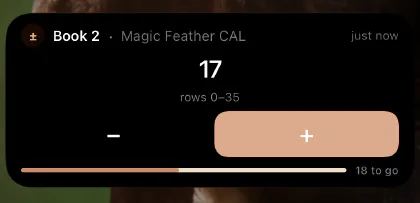 Tap Stop in the app when you’re done, or swipe the Live Activity away — either works, and
the app notices which one you did.
Tap Stop in the app when you’re done, or swipe the Live Activity away — either works, and
the app notices which one you did.
Two things worth knowing:
- It follows the counter it started with. Selecting a different counter in the app doesn’t move it — stop it and start it again on the counter you want.
- Counting from the Lock Screen and counting in the app stay in step, whichever you use.
No Live button? Live Activities are switched off for Yarn Squirrel in iOS Settings. The button is hidden entirely rather than offered and broken.
The widget
There’s also a widget for your Home Screen or Lock Screen, with the same − and +.
Add it the usual way — touch and hold the Home Screen, tap +, and find Yarn Squirrel. Then touch and hold the widget itself and choose Edit Widget to pick which project and which counter it shows. That makes it a good home for the project you’re actually working on this week.
If a tap doesn’t seem to land
Counting from a widget or the Lock Screen is handed to the app in the background. The number on screen updates immediately; the app catches up the next time you open it. So if you count twenty rows on the Lock Screen and then open the project, you’ll see all twenty — not a stale number.