Opening a pattern from a project gives you the reader: the pattern, your counters, and a set of tools meant for working from rather than just looking at.
The buttons for these sit at the top right, next to the pattern’s name.
It remembers your place
When you come back to a pattern, it opens where you left off — the right page, scrolled to the right spot, at the zoom you were using.
This is kept per part. A pattern split into several files remembers each one separately, so coming back to part three doesn’t land you at the top of part one.
One exception worth knowing: opening a PDF from the pattern’s own page rather than from a project uses the iOS document viewer, which has no memory of where you were. If you want your place kept, open the pattern from the project you’re making.
Guide lines
The guide-lines button rules a yellow band across the row you’re working on and a green vertical line down the page. Each has a small handle — drag it to move the guide.
They’re the app’s answer to a ruler and a sticky note. Each project keeps its own line positions, so they’re where you left them next time.
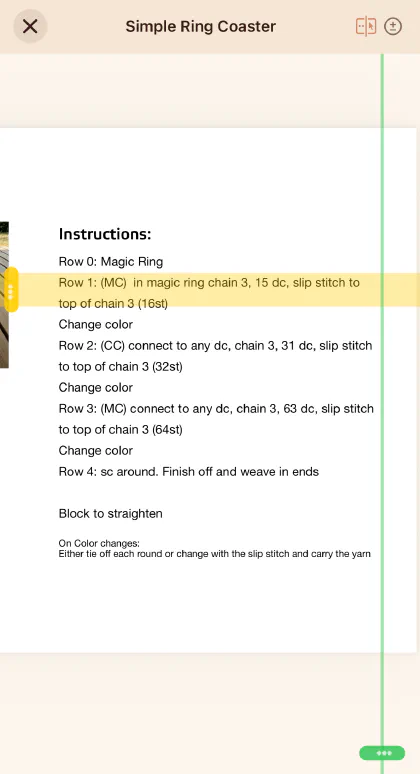 Tap the button again to hide them.
Counters, without leaving the page
The ± button slides your row counters in over the pattern — the badge on it tells you how many the project has. Count a row, carry on reading, no navigating back and forth.
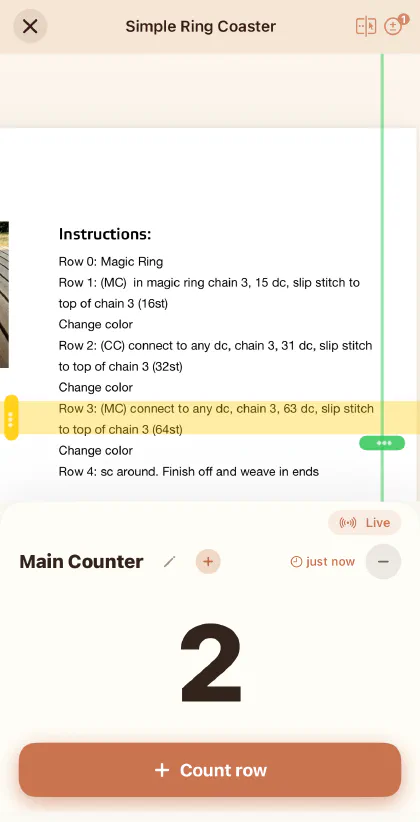 See Row counters for repeats, links and alerts.
Multi-part patterns
If a pattern has several files, the parts button lets you jump between them. A part this device can’t open is marked and can’t be tapped — see Why won’t my PDF open on this device?.