A project can have as many counters as you need: one for the body, one for each sleeve, one for the rows between decreases. You’ll find them in the Row Counters section of a project, and also inside the pattern reader so you can count without leaving the page.
Tap + to add one. The counter you’re on shows as a card with − and +; in the reader it gets a full-width + Count row button instead.
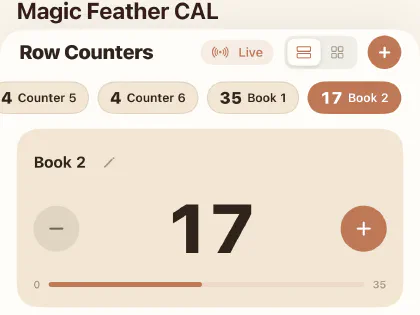
Giving a counter a range
Each counter has a starting value and an ending value. The starting value is where it begins, and where it returns to when you reset it.
Leave the ending value at 0 and the counter simply counts upwards for as long as you like. Give it an ending value and you get a progress bar, so you can see how far through the section you are at a glance.
Repeating counters
Turn on Repeating and the counter wraps back to its starting value when it reaches the end, counting how many repeats you’ve finished.
This is the one for a stitch pattern worked over and over — an eight-row repeat up a sleeve, say. Instead of doing the arithmetic in your head, you get “row 3 of 8, five repeats done”.
Linked counters
A counter can be linked to others, so counting one counts them all.
The usual reason is a total: link your “repeat” counter to a “total rows” counter and one tap moves both. It works in both directions — going back takes the linked counters back too.
Row alerts
You can attach an alert to a specific row with a message to yourself. When the counter reaches that row, the message appears.
This is where to put the thing you know you’ll forget: “start the thumb gusset”, “change to the smaller hook”, “stuff the head before closing”.
Colour
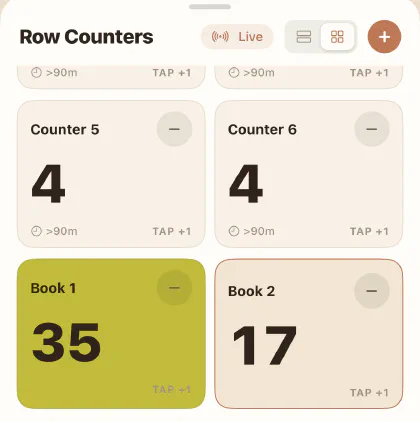 Each counter can have its own card colour. With four counters on screen, colour is much
faster to find than reading names — and it’s the difference between the left sleeve and the
right one at a glance.
Each counter can have its own card colour. With four counters on screen, colour is much
faster to find than reading names — and it’s the difference between the left sleeve and the
right one at a glance.
Editing and resetting
Open a counter’s edit screen to change its name, its values, its colour, the repeating setting, its links and its alerts.
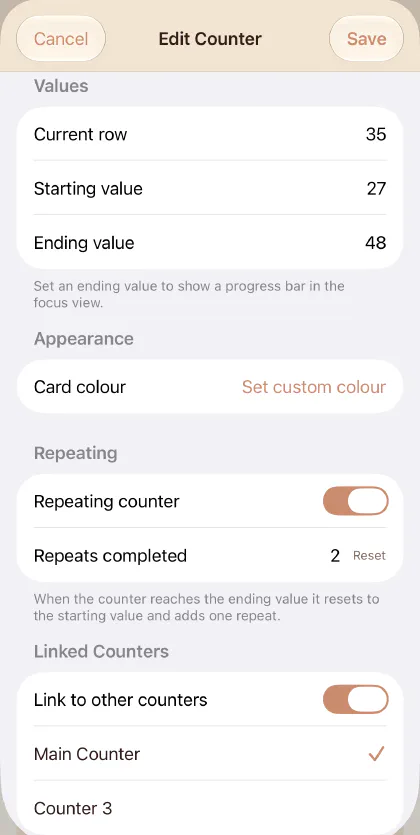
If you set an ending value below the starting value, Yarn Squirrel tells you rather than quietly accepting it: Ending value must be greater than starting value.